Much as I love XrmToolBox, and loved making tools for the toolbox, I have always thought that the visual aspect of the tools left some thing to be desired. As it is based on WinForms technology, over 20 years old, it is from an era before my kids were born, suitable for us back then, with our long hair, leather jackets and mobile phones that didnt work and were the size of a brick.
So, when Danish Naglekar proposed late last year that we re-imagine the XTB, I jumped at the chance! If you haven’t seen the Power Platform ToolBox, go download it, check it out and give us feedback!
(Mostly I am excited by Dark Mode, but creating apps that use React/Fluent for wider use is exciting, and look great!)
My first tool on the XTB was the OrgSettings Tool, a take on the solution that Sean McNellis has made.
If you are un-aware, there are several under the cover settings in your Power Platform environment that can alter the way some of the parts work, such as Server Side Sync, Security and other parts of a standard CRM environment. And, updating these settings is not a click in the admin centre.
Whilst it is true to say, the product team are moving towards more clickable, or at least via the PAC CLI update of settings, these settings still keep getting added to and updated.
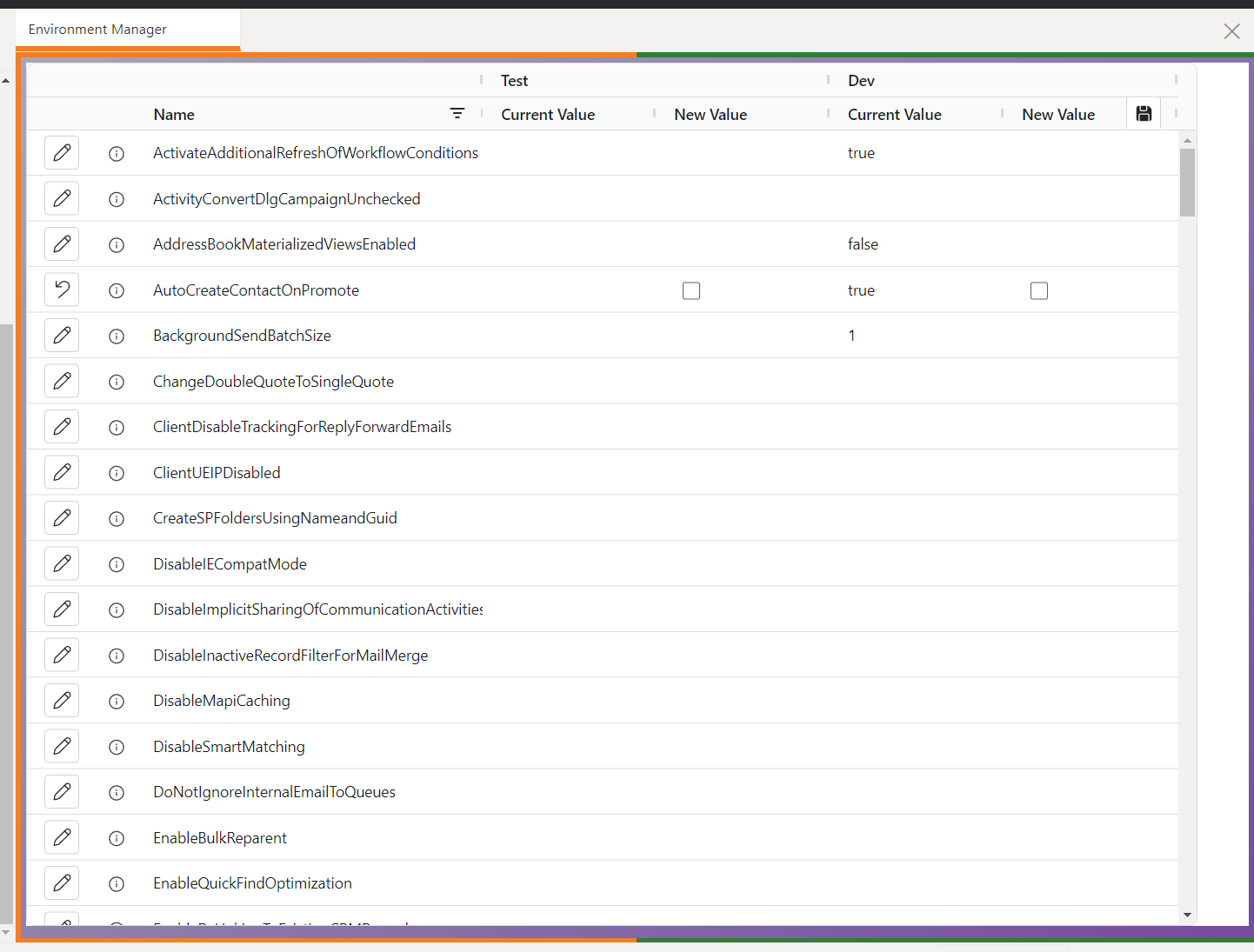
With that said, I thought why not re-imagine the interface for it in the PPTB, hence I am proud to announce the Environment Manager in PPTB!
Connecting and Reviewing your settings
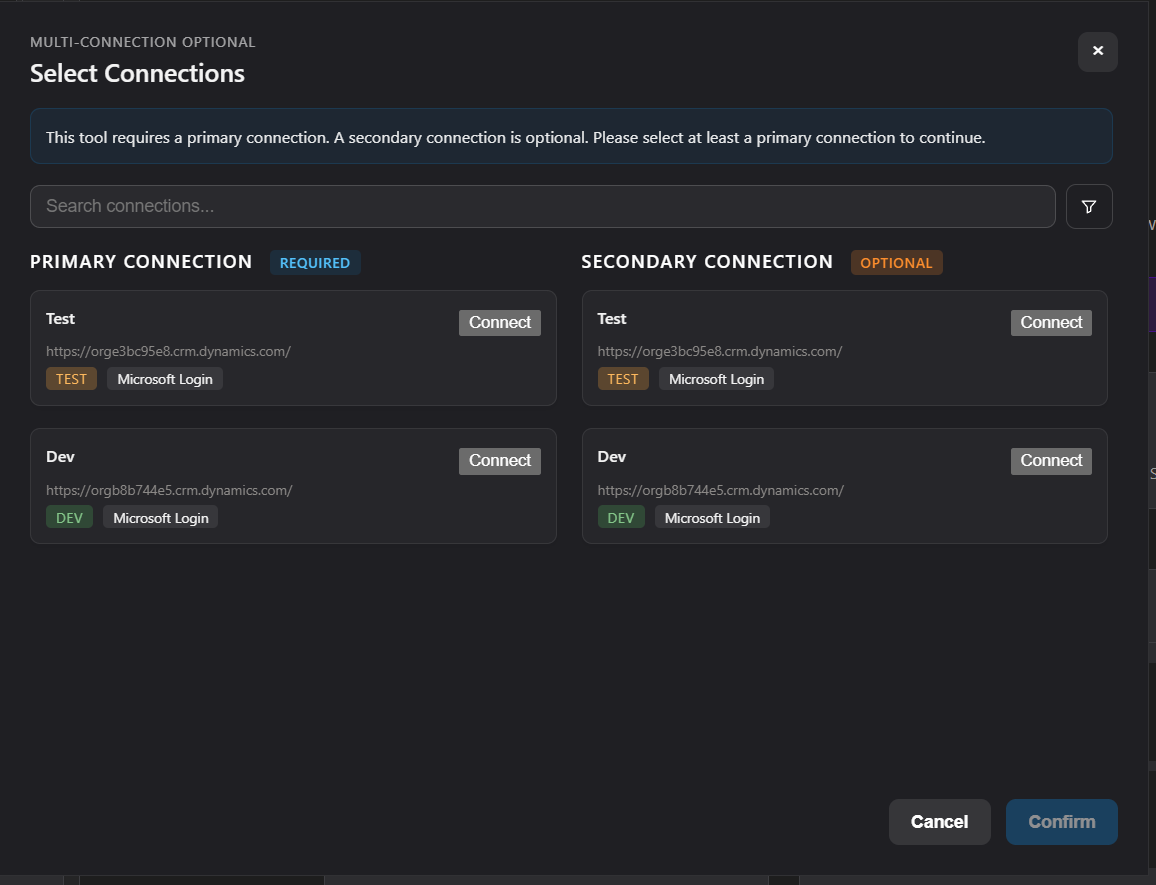
Environment Manager supports 2 connections, to compare environments. It will also work if you chose just one.
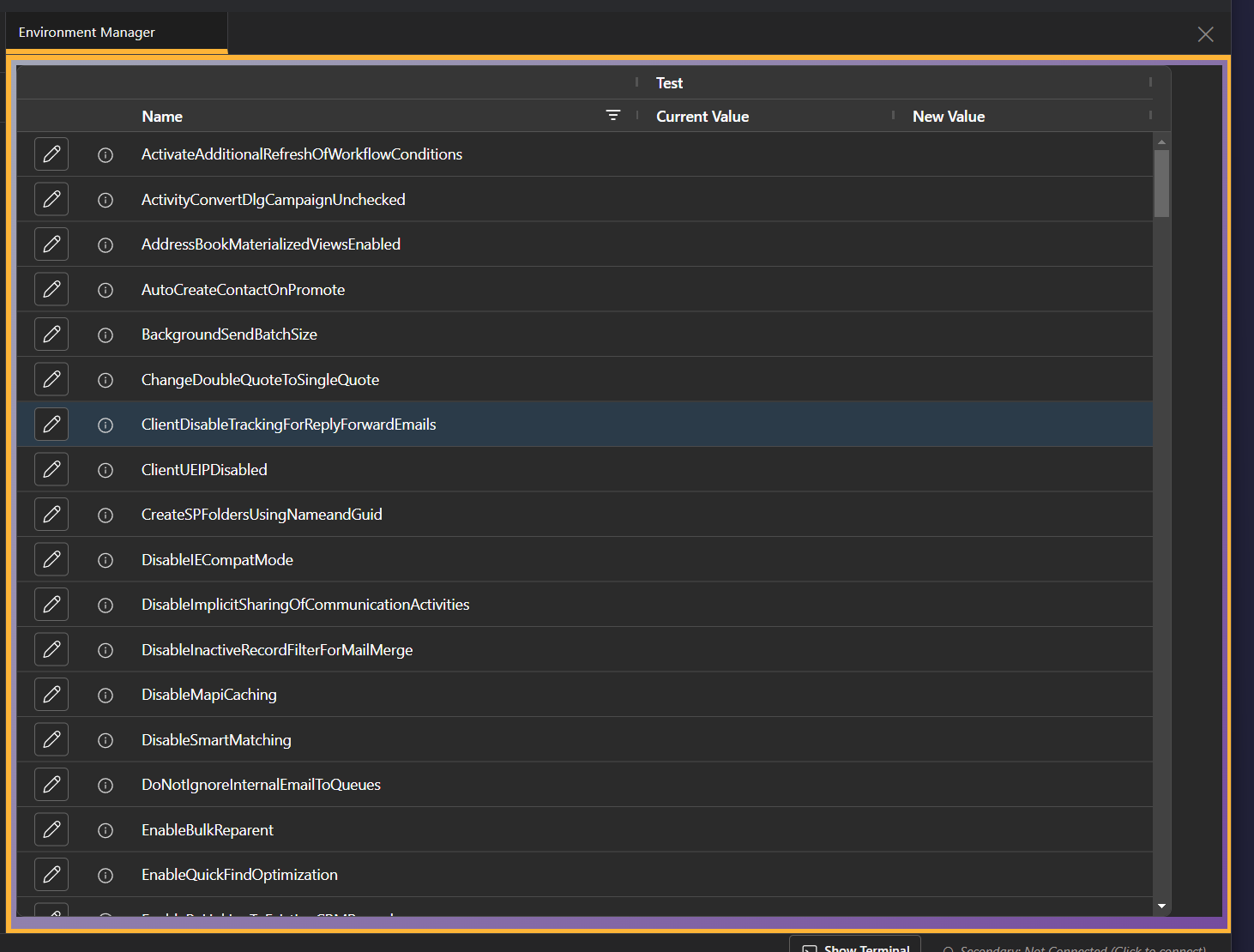
For a single connection, you are presented with one column of values.
For multi connection, you are presented with 2 columns of values.
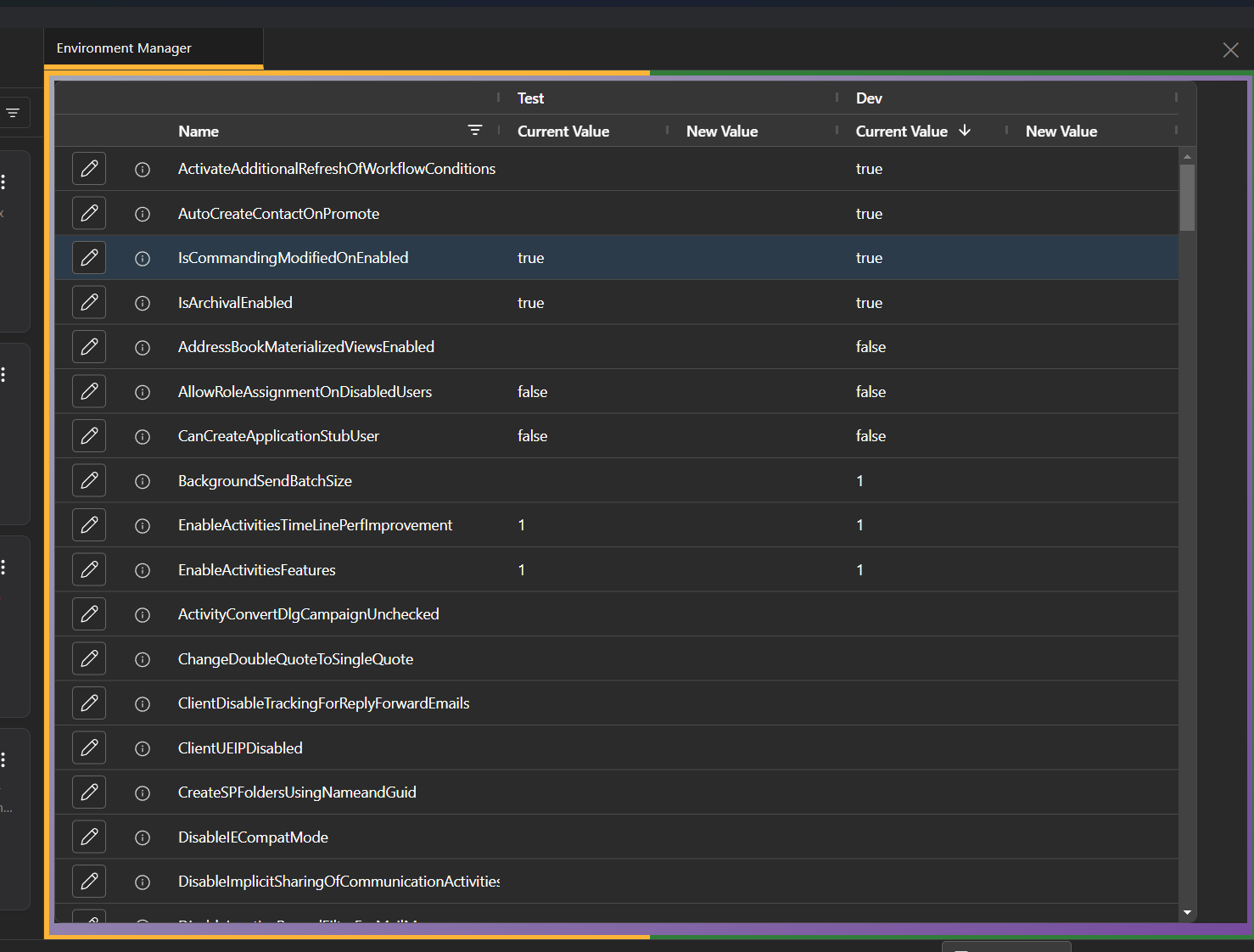
Here, you can sort, search and compare configuration settings across your environment(s).
If you want to find out a little more information on the setting, there is a little i icon which will firstly show you information dragged from the Github repository, maintained by Sean.
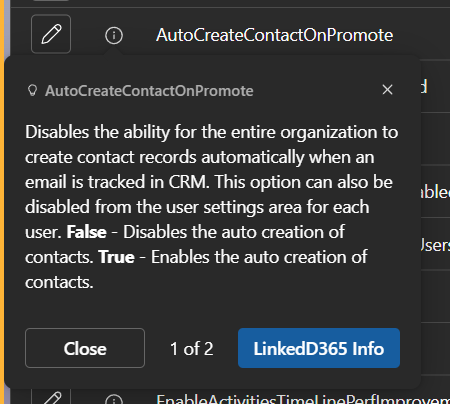
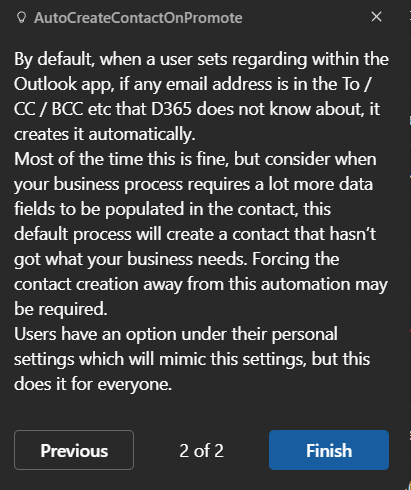
If I have added more info on my blog here this will be available in the LinkeD365 Info button.
Editing a variable
On the left of the grid is a little pencil. Clicking on it enables the values to be changed.

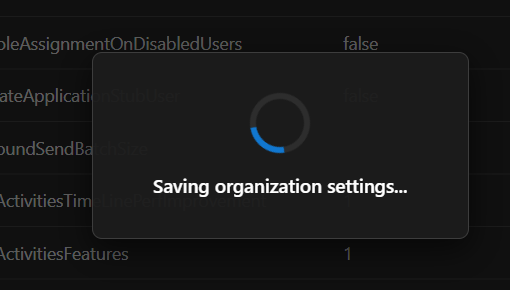
Once happy to update that value, hit the save button on top of the grid, which will give you a progress check and save back the configuration
If you want to revert to the original value, hit the revert button.
Thats it! Hope it helps someone.
Please provide feedback and bugs on the GitHub repository Env Manager