Being involved from the outset of the https://PowerPlatformToolBox.com has been hard work, tiring and worth every hour.
To ensure the PPTB gets as much impetus as possible, providing equivalent tools as what is in the XrmToolBox was part of our goals. It is all very well to have a sexy looking multi-os framework, but without the core tools it would never take off.
This is why the talented Mohsin Mirza (MohsinoXrm) has created the FetchXML Studio and our glorious leader Danish Naglekar has made the [PCF Builder](https://www.powerplatformtoolbox.com/tools/ fca7fd3c-54e1-4d2f-877c-ca29d1f4cd47)
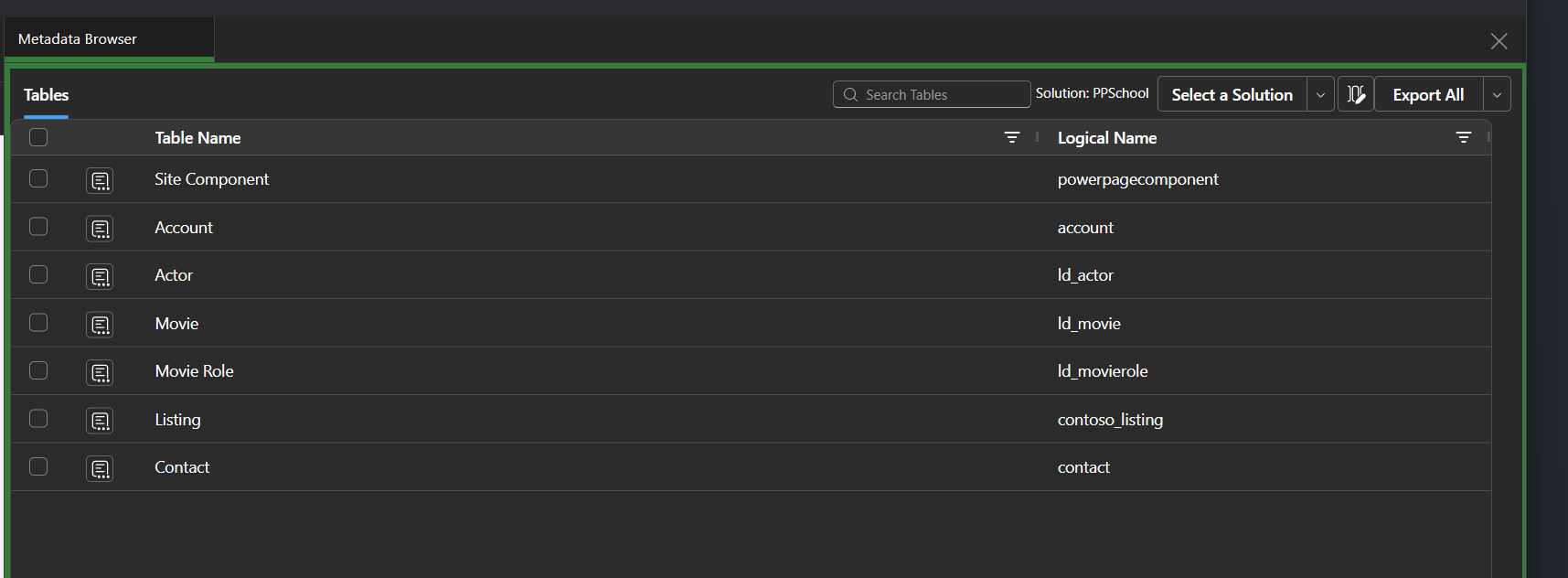
To that end, I have created Metadata Browser. Still going strong on the XrmToolBox the legend that is Tanguy Touzard created the original, and my version respectfully (with his permission) copies that with a reimagined interface to take advantage of the capabilities of the Electron PPTB, with a REact, Fluent based app with an AG-Grid grid to provide a performant interface.
Using the tool
The tool is pretty (hopefully) self explanatory. Select a solution, or all tables and select a table for start looking at the various parts of the table as defined, whether it be fields, relationships, keys or everything else that is connected to a table.
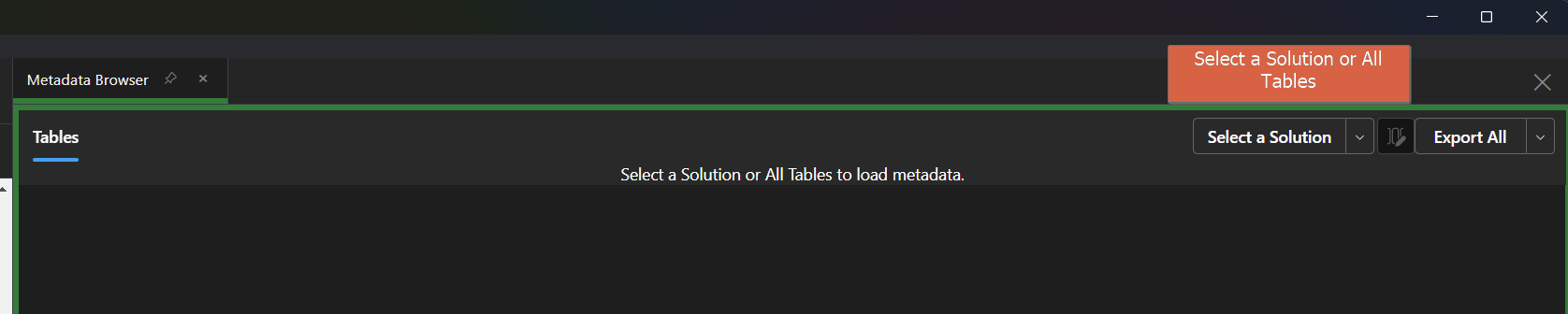
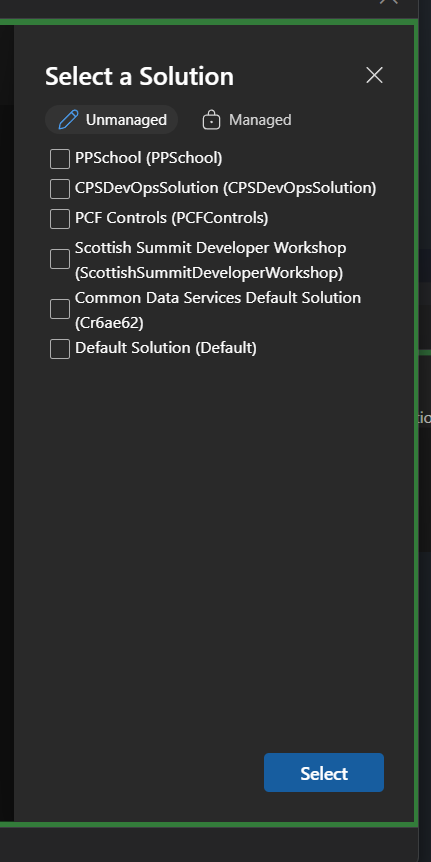
If you choose a solution, a drawer will appear allowing you select Managed or Unmanaged solutions in your environment.
The list of tables will then display all the tables associated with that solution.
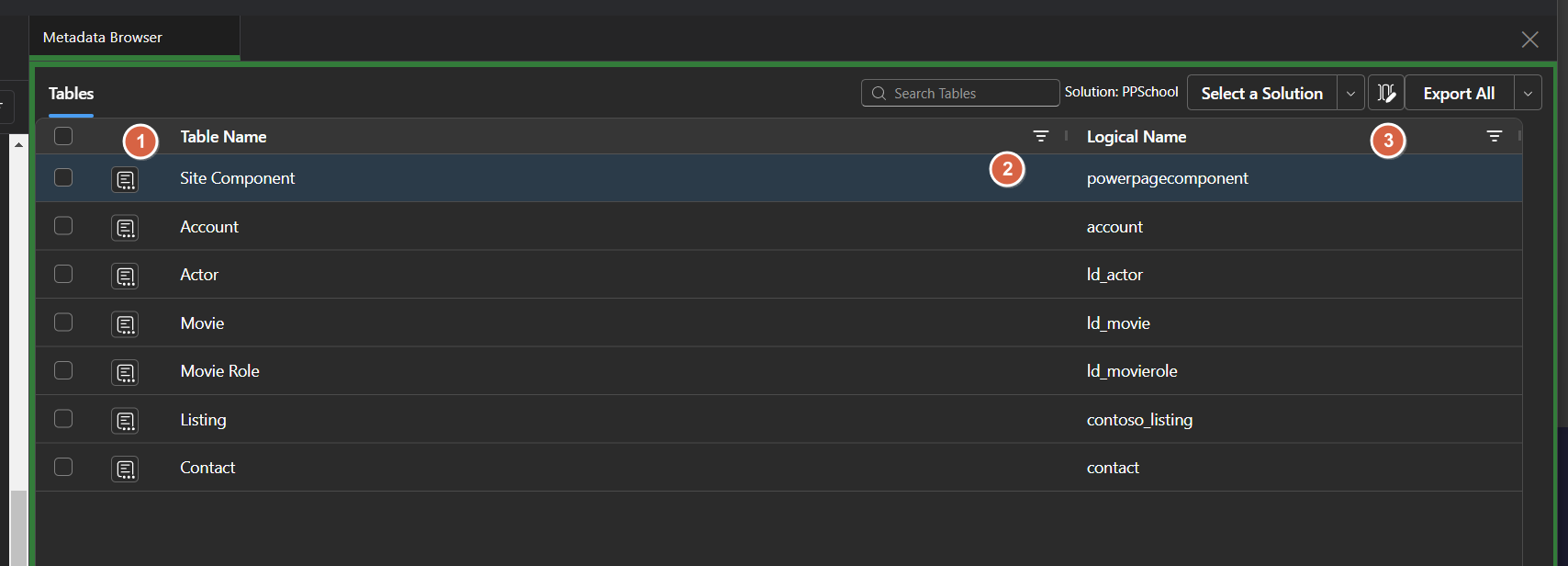
- This icon opens the table as a new tab
- The grid is sortable and searchable
- You can add or remove columns to display in the list, displaying a popout like below
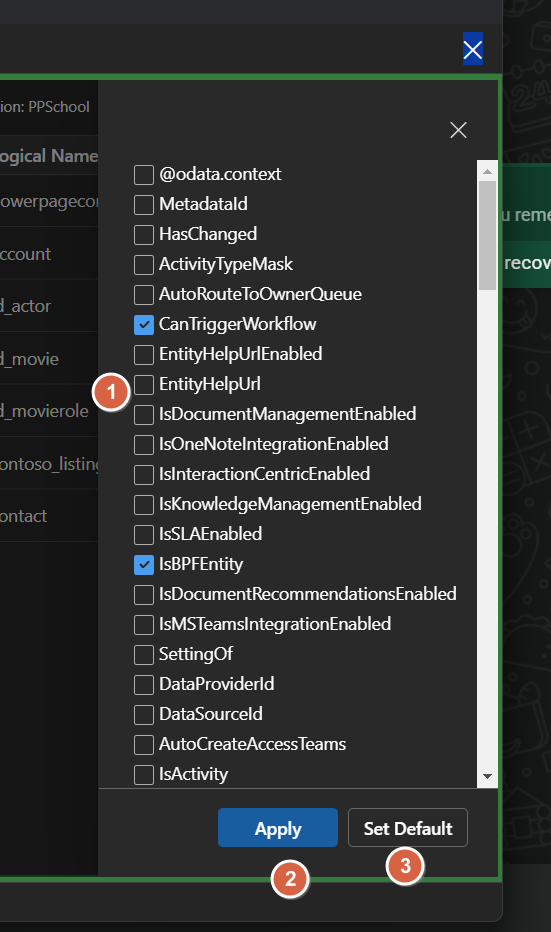
- Here you can add one more columns against the table. This applies to each subsequent tab, you can add columns to display further details on column attributes, relationships etc.
- Save updates the current list
- Set Default saves the configuration as your default next time you open the tool.
Note
The columns you select here also affect the columns exported for each tab. It does not impact the Excel export.
Selecting one of the tables opens that table as a new tab.
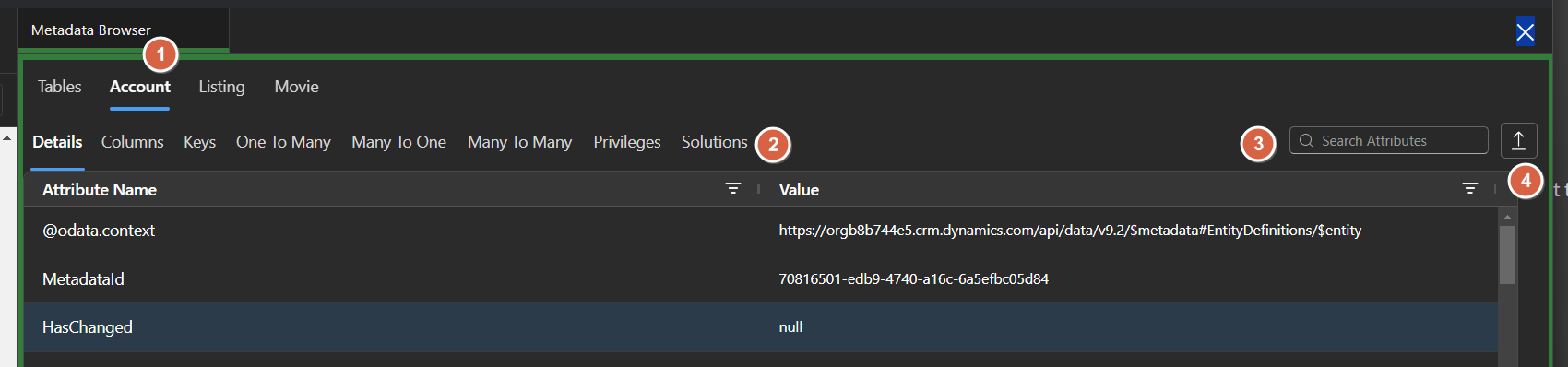
- Each table is added as another tab
- More tabs below give you further details for that table
- You can search to find an attribute.
- This button exports the details of the table, each tab has similar for the data shown.
Each sub tab (Columns, Keys, Relationships, Privileges and Solutions) will retrieve the relevant data from your environment, to quickly see the information that is stored in your system and export it.
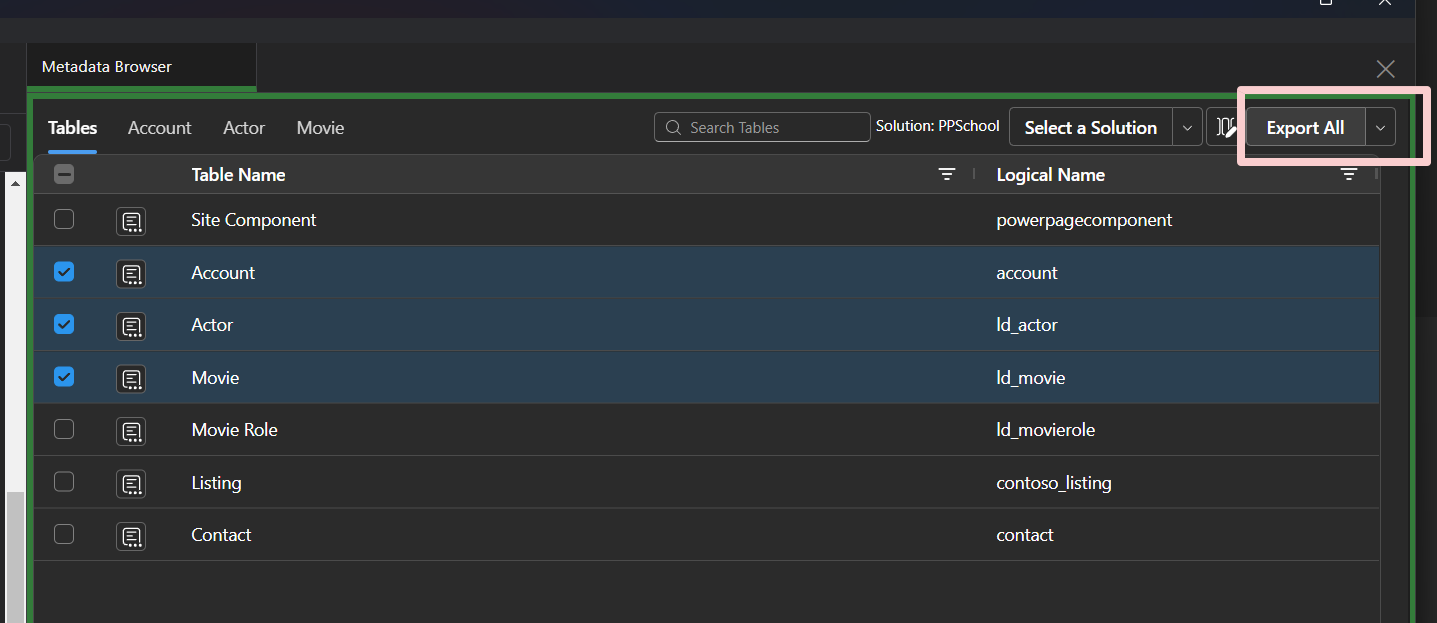
Selecting this option allows you to define which tabs will be created in an Excel report, with seperate sheets per option.
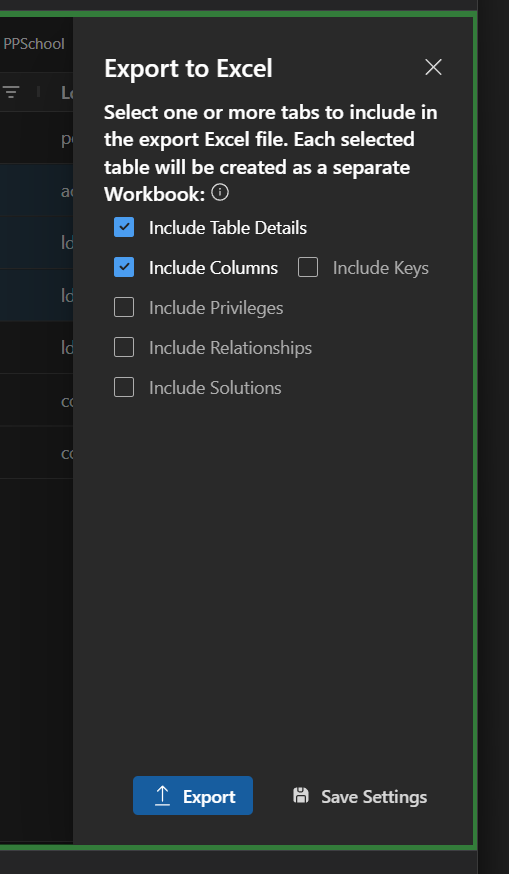
This will prompt you to save 1 Excel workbook per table.
Please let me know if you have any issues or requests for improvements Metadata Browser